This guide explains exactly how to invite a client to Quilia during intake, what to say, and what the client will see on their phone.
The invite goes out to every contact method you have on file: a text message to their cell phone, an email to their address, and both when you have both. A client with only an email address receives the email invite (branded with your firm's logo and name), and a client with both can sign into the same account with either one.
Printable one-page guides you can hand to clients or drop into intake packets:
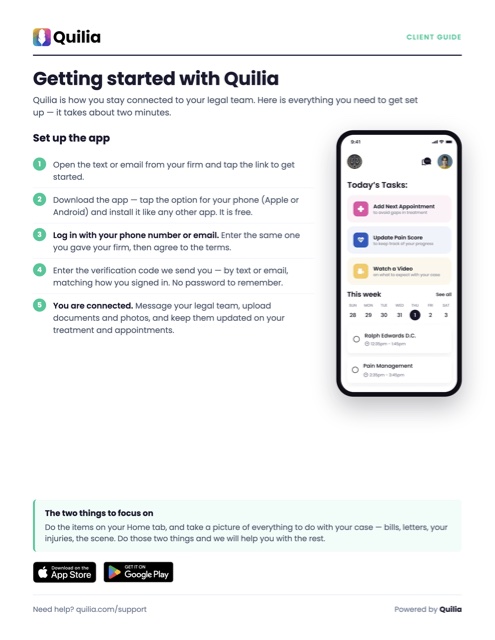 Getting started with QuiliaDownloading the app and logging in for the first time.Download PDF
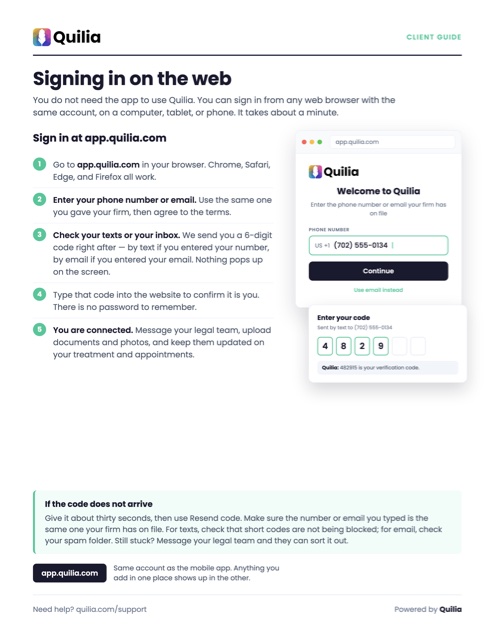 Signing in on the webUsing Quilia from a browser, no app required.Download PDF
Best time to invite the client
- Invite the client during the first meeting, either in person or over the phone.
- Set expectations before you send the text so the client knows what is coming.
What to say before sending the invite
Use simple language. For example:
I’m about to send you a link to download the Quilia app. It’ll come by text message, and by email if we have yours on file. It’s the best way to stay in touch with our firm and keep us updated on what’s going on with your case.
How to invite the client
- In Quilia, click the Invite button for the client.
- Confirm the client’s correct cell phone number, email address, or both.
- Tell the client to open the text or email as soon as it arrives.
What the client sees after the invite
- The client receives the invite with a link, by text message, by email, or both if you have both on file. The email version leads with your firm’s logo and name and includes buttons for downloading the app or accessing Quilia on the web.
- When they tap the link, it opens the Download Quilia landing page.
- That page shows download options for Apple, Android, and web.
- The client taps the option that matches their device.
- They are taken to the App Store or Play Store to download the app.
The app is free to download. If the phone asks for an Apple ID, Google password, Face ID, or other app store confirmation, that is normal and controlled by the client’s device, not by Quilia.
How the client logs in for the first time
- After the app finishes downloading, the client opens it.
- They will see the login screen, with the option to sign in by phone number or by email.
- They should enter the same phone number or email address they gave your firm. Only a phone number or email your firm has invited can sign in.
- Before continuing, they must agree to the terms.
- Then they tap “Get code.”
Quilia sends a 6-digit verification code by text message or email (matching how they chose to sign in) and moves them to the code entry screen. There are no passwords to create or remember.
Entering the verification code
- On many phones, a texted code will autofill automatically when the client taps the code field.
- If it does not autofill, the client can open the text message or email and type the code in manually.
- After entering the code, the client taps “Submit code.”
- Once the code is accepted, the client is logged in to the app.
If the client does not get the code
- First, confirm they entered the same phone number or email address as the one that received the original invite.
- Ask them to tap “Get code” again to resend it.
- If a texted code still does not arrive, they can use the Call me instead option to receive the code by phone call.
- If an emailed code does not arrive, have them check their spam folder.
Quick troubleshooting tips for staff
- For text invites, make sure the client is using a mobile phone number, not a landline.
- Make sure they are typing the exact same phone number or email address the firm used for the invite.
- If they downloaded the app but got stuck, stay with them until they complete the code step.
- If the client is not comfortable with app stores, walk them through tapping the correct Apple or Android button on the Quilia page.
What success looks like
The client has successfully joined Quilia after downloading the app, entering their phone number or email, submitting the verification code, and reaching the home tab after login.
Recommended staff workflow
- Send the invite while the client is still with you.
- Wait while they tap the link and download the app.
- Make sure they log in with the same phone number or email the invite went to.
- Help them finish the verification code step before ending the meeting or call.
Short version staff can memorize
- Send invite
- Client taps the text or email link
- Client downloads the free app
- Client logs in with the same phone number or email
- Client agrees to the terms and taps “Get code”
- Client enters code and taps Submit
- Client is in