Are You Ready to Transform Your Client Onboarding Process?
8 videos
Welcome to our video library on client onboarding! Here, personal injury attorneys and legal staff can access valuable resources to improve their onboarding processes. Learn how Quilia's mobile app can revolutionize client communication and boost your firm's efficiency.
 Vertical1:14
Quilia Ink: Faster Client Signatures
Quilia Ink makes it easy for clients to sign documents instantly from their phone. No emails to dig through. No accounts to create. Just a simple tap, fill, and sign experience built directly into the Quilia app. Why It Works Better on Mobile Clients get a text + push notification instantly Opens directly to the document Clean, guided form instead of a cluttered PDF Sign and submit in seconds Built for Law Firms No per-signature fees No extra tools to manage Syncs automatically with your case management system Designed for personal injury client workflows Most e-signature tools fail before the client even opens the document. Quilia Ink removes that friction completely.
personal injury softwarecase management softwarelegal techclient communication 1:14
1:14Quilia Ink: E-Signatures for Law Firms Without DocuSign Friction
Quilia Ink is a built-in e-signature solution designed specifically for personal injury law firms. Stop chasing signatures through email. With Quilia Ink, clients receive documents directly inside the Quilia app they’re already using for their case. No logins, no confusion, no missed emails. Why Quilia Ink? No more lost DocuSign emails No account creation required for clients Mobile-first signing experience Push notifications and text reminders built in No per-signature fees Automatic sync with your case management system How It Works Upload a PDF in the Quilia portal Add signature, text, and date fields Send instantly to your client Client signs in a simple, guided form Completed document syncs back to your system Built for Law Firms Quilia Ink is part of the Quilia client app, helping law firms improve client compliance, reduce delays, and streamline document collection without adding another tool to manage.
personal injury softwarecase management softwarelegal techclient communication 2:17
2:17Welcome to Quilia: Your Personal Injury Case Companion
Welcome to Quilia — the app that helps you stay organized, informed, and connected throughout your personal injury case. In this short walkthrough, Quilia’s CEO, Kenny Eliason, shows how to navigate the app and make the most of its features. Inside the app, you’ll find everything you need to track your recovery and keep your attorney up to date — all in one place. From logging treatment updates and daily pain levels to uploading photos and managing property damage or wage loss details, Quilia makes the process simple and stress-free. Each update you add goes straight to your legal team, so they always have the latest information without you having to call or email. You can also update your profile, adjust language settings, and check in on any tasks or requests your firm assigns. Remember, your attorney can only fight for what they know about. The more details you include in Quilia, the stronger your case becomes. Whether you’re just starting recovery or deep in treatment, Quilia keeps you organized and confident every step of the way.
personal injury softwarelegal techclient experienceclient onboarding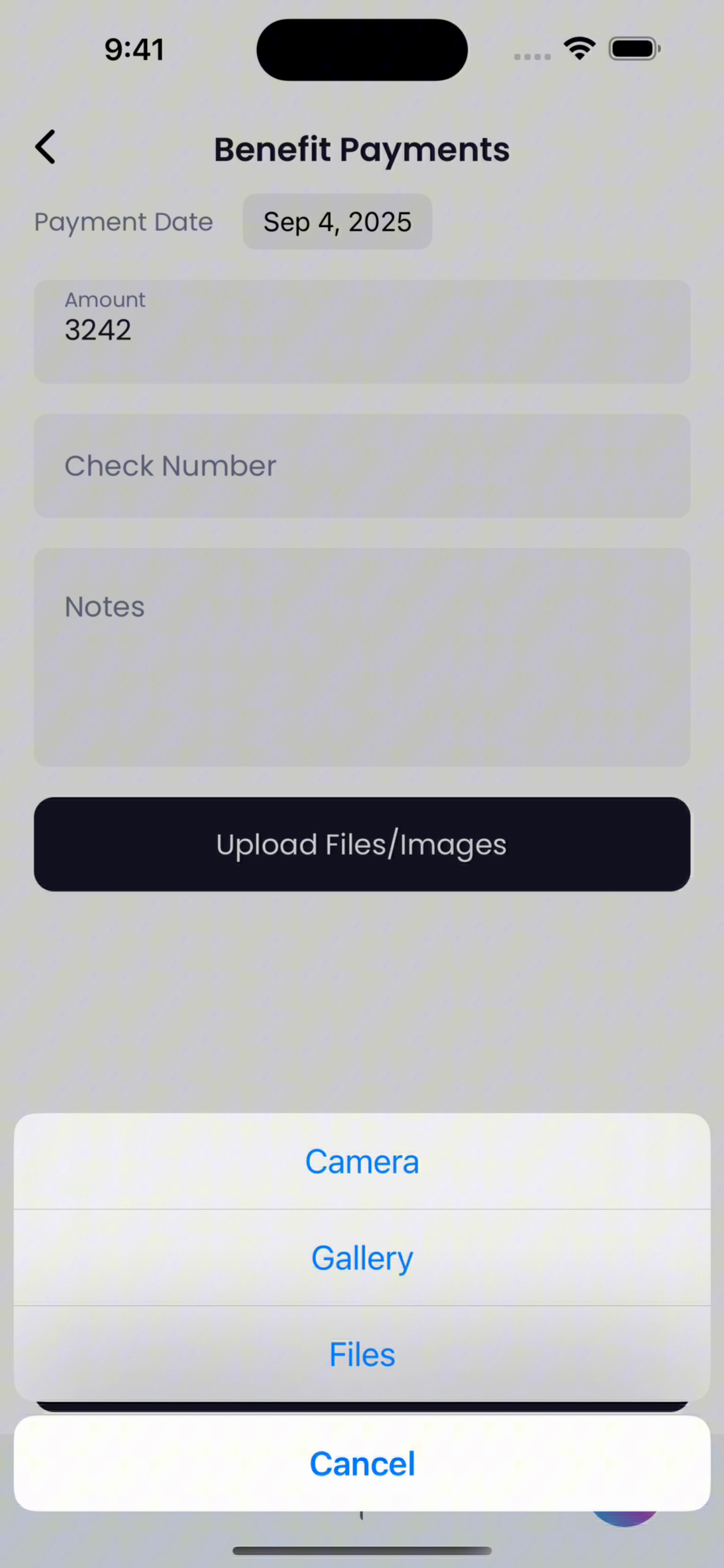 Vertical0:25
How to Upload Benefit Payments in Quilia
Keeping track of your workers’ comp benefit payments in Quilia helps make sure nothing slips through the cracks. By uploading your check amounts (and a photo of each check), your attorney gets a clear record of what you’ve been paid and when. This makes it easier to stay on top of your case, avoid confusion later, and ensure you’re getting every dollar you deserve. Here’s how to do it: Go to the Wages tab. Select Benefit Payments. Enter the amount of the check you received. (Optional) Add the check number and any notes. Tap Upload Files/Images to attach a picture of the check. Click Save to finish. That’s it — your payment is logged, your case file is stronger, and you’ve done your part to keep things moving smoothly.
client onboardingquilia appclient tutorialworkers comp case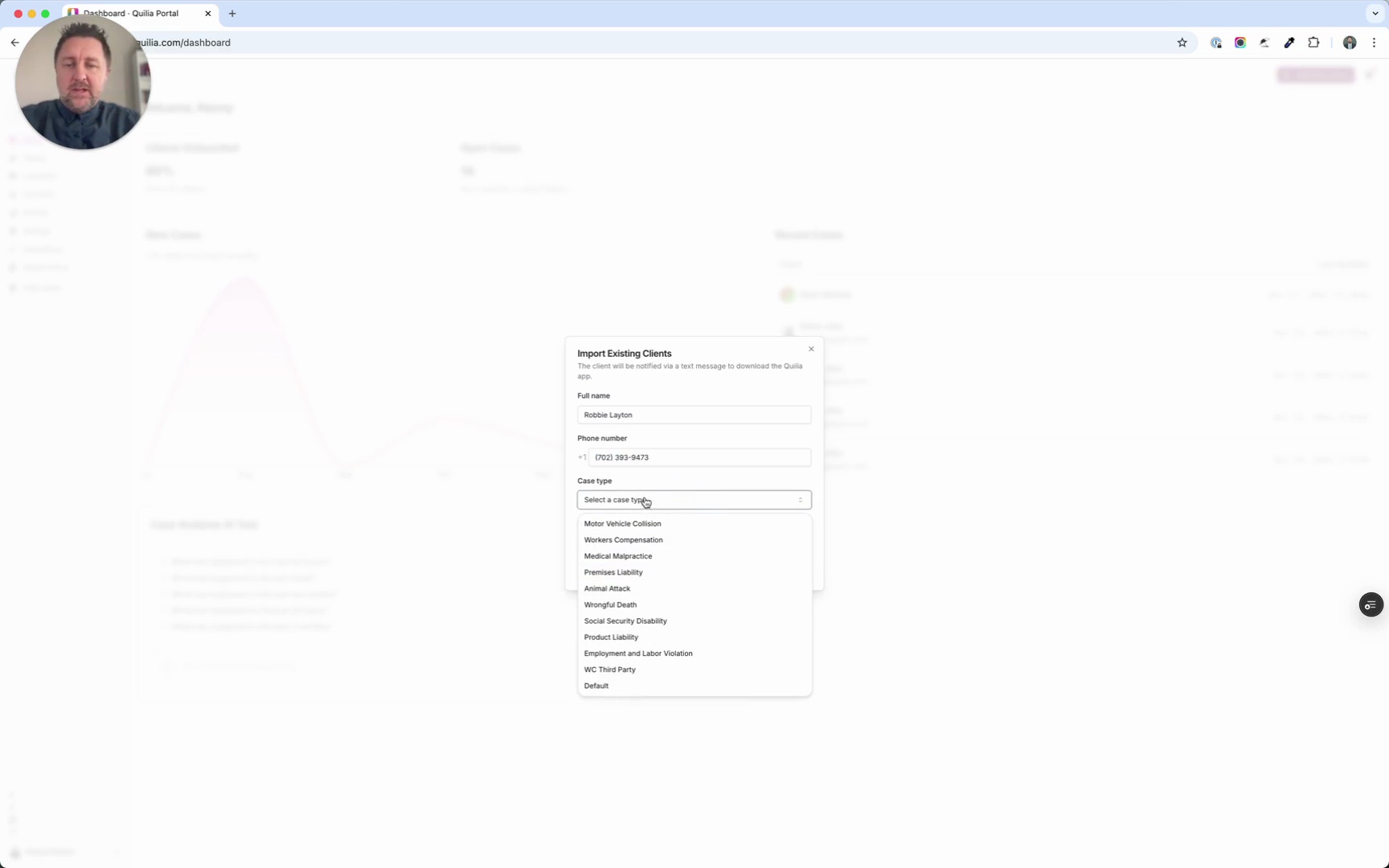 0:33
0:33Adding Your First Client to Quilia
Getting started with Quilia is simple. In this tutorial, you’ll learn how to add your very first client to the platform and send them an invite to download the app. Steps covered in this walkthrough: - Log in and click Add New Client in the top-right corner. - Enter the client’s name, a text-enabled phone number, case type, and preferred language. - Click Add Client to create their profile in Quilia. - To notify them, click Send Download Invite and confirm. That’s it—your client is now set up and ready to participate in their case using Quilia.
case management softwarelaw firm efficiencypersonal injury attorneysclient onboarding Vertical2:10
New Reporting Dashboard
This August 19, 2025 release brings major updates to help law firms manage personal injury cases more efficiently. From upgraded reporting to smarter client onboarding, Quilia continues to streamline workflows so teams can focus on building stronger cases. Highlights in this release: Enhanced Reporting Dashboard – Monthly trend charts, manager-level filters, and dynamic visualizations for quick performance insights. Smarter Client Onboarding – Automated text reminders for incomplete intake steps, plus intelligent language detection for multilingual clients. Friendlier Document Requests – “Required documents” are now framed as “requested documents” for a more client-first tone. Improved Integrations – More reliable Smokeball syncing and overall faster portal performance. Coming soon: Public API access for firms with custom CMS setups and SmartAdvocate integration for automatic syncing of cases, clients, and staff. Don’t forget the Quilia Partner Program—earn 20% commission on referrals, with 40% on your first ten sign-ups at quilia.com/partners
case management softwarepersonal injury attorneyssmokeball integrationclient onboarding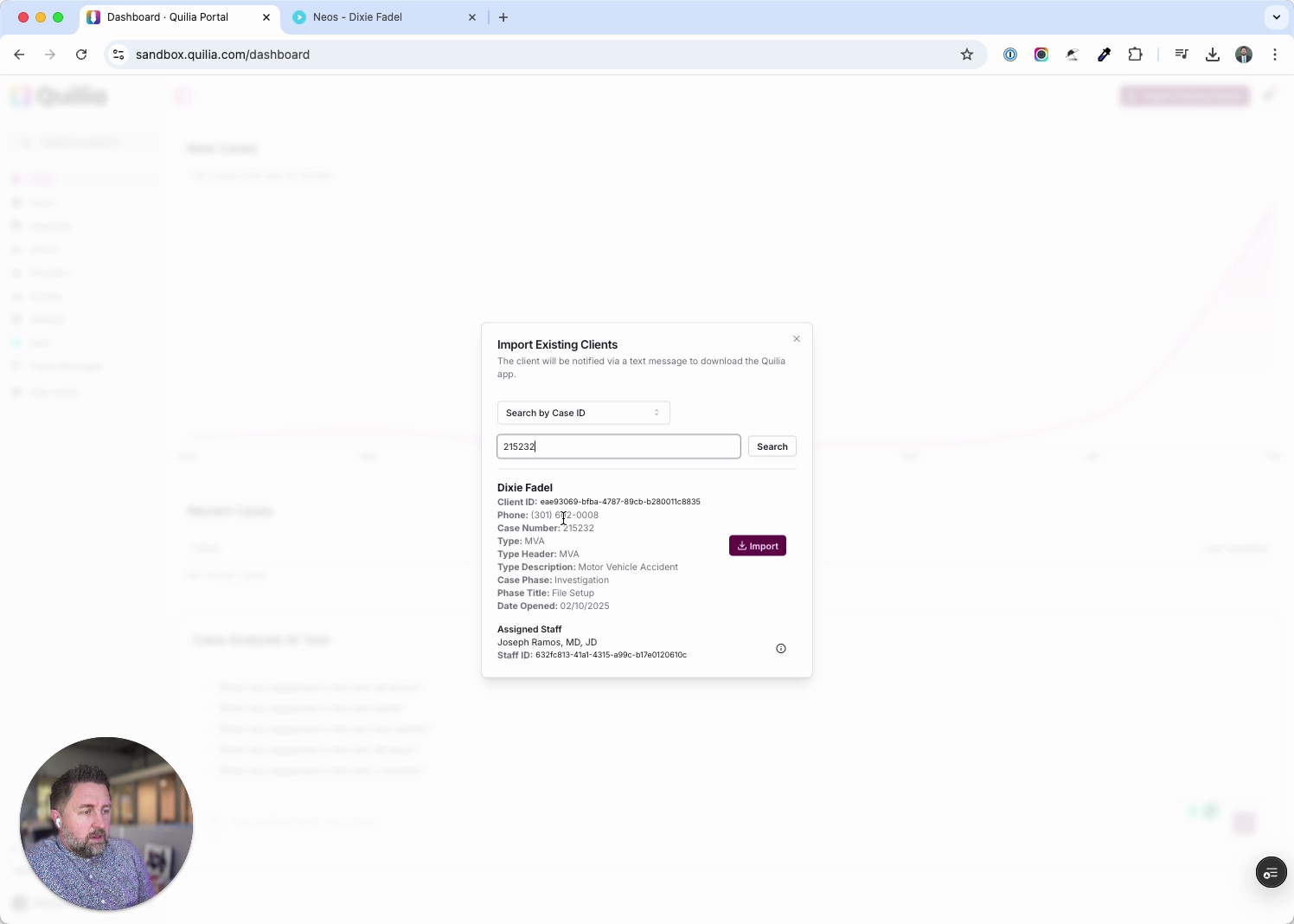 0:53
0:53Adding Existing Clients from Neos into Quilia
This tutorial shows how to quickly import existing clients from Neos into Quilia. The process takes just a few clicks, letting you sync cases and get clients set up in the app right away. Steps covered in this walkthrough: In Quilia, click Import Existing Clients. Copy a Case ID from Neos and paste it into the prompt. Confirm the client’s case details and assigned staff. Complete the import and verify the case is added. If automatic invites are off, send a download invite manually to the client. With this workflow, you can seamlessly pull cases from Neos into Quilia, ensuring clients are ready to start participating in their case without delay.
case management softwarelaw firm efficiencypersonal injury attorneysneos integration Vertical0:30
Grow Your Law Firm: From Sign-Up to Set-Up in Seconds
Getting clients onto Quilia is fast and frictionless. Once a firm decides to take a case, all it takes is one click inside the case management system to send an invite. The client instantly gets a text with three options: download the app on iOS, download on Android, or log in through the web. From there, setup takes just seconds. Clients enter their phone number, log in, and can start adding updates, documents, and case details right away. No complicated onboarding, no delays—just immediate participation that strengthens the file from day one.
case management softwarelegal techlaw firm efficiencypersonal injury attorneys